Use Spotlight Search or the App Library to locate hidden apps.
Check Screen Time restrictions to re-enable system apps.
Use the Reset Home Screen Layout option to restore missing icons.
Follow this complete guide to learn how to unhide apps on iPhone efficiently.
Content
Why Do Apps Disappear from Your iPhone?
It’s not unusual to find an app missing from your iPhone’s Home Screen. Sometimes, the app is placed inside a folder and forgotten. Other times, it’s hidden due to restrictions or accidentally removed from the Home Screen. In some cases, the app may still be installed, just not visible.
If that sounds familiar, don’t worry. This article will guide you through multiple methods to unhide apps on iPhone, including how to locate them in the App Library, adjust visibility settings, and restore them to your Home Screen.
How to Unhide Apps on iPhone: A Complete Guide
Let’s go over the specific steps to retrieve hidden apps depending on how they were hidden.
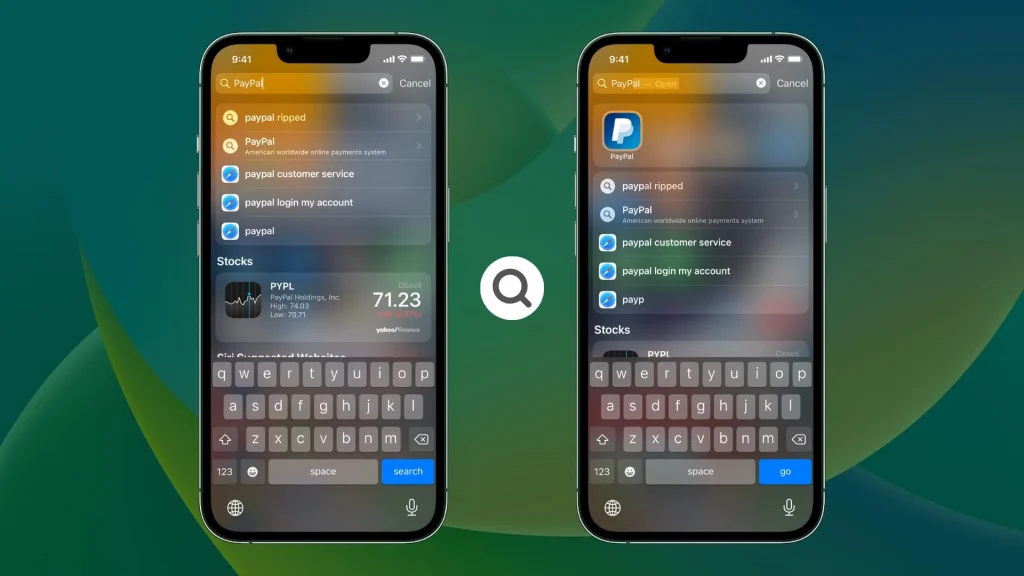
Method 1: Use Spotlight Search to Find Hidden Apps
If the app is still installed, Spotlight is the quickest way to locate it.
Steps:
Swipe down on any Home Screen to open Spotlight.
Type the name of the missing app.
If it appears in the results, tap to open it.
Press and hold the icon to drag it back to your Home Screen if needed.
This method is especially helpful when apps are removed from the Home Screen but not deleted.
Method 2: Search in the App Library
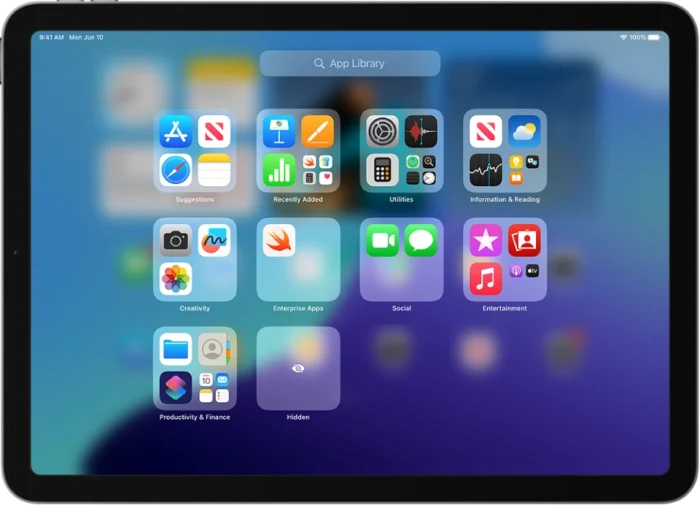
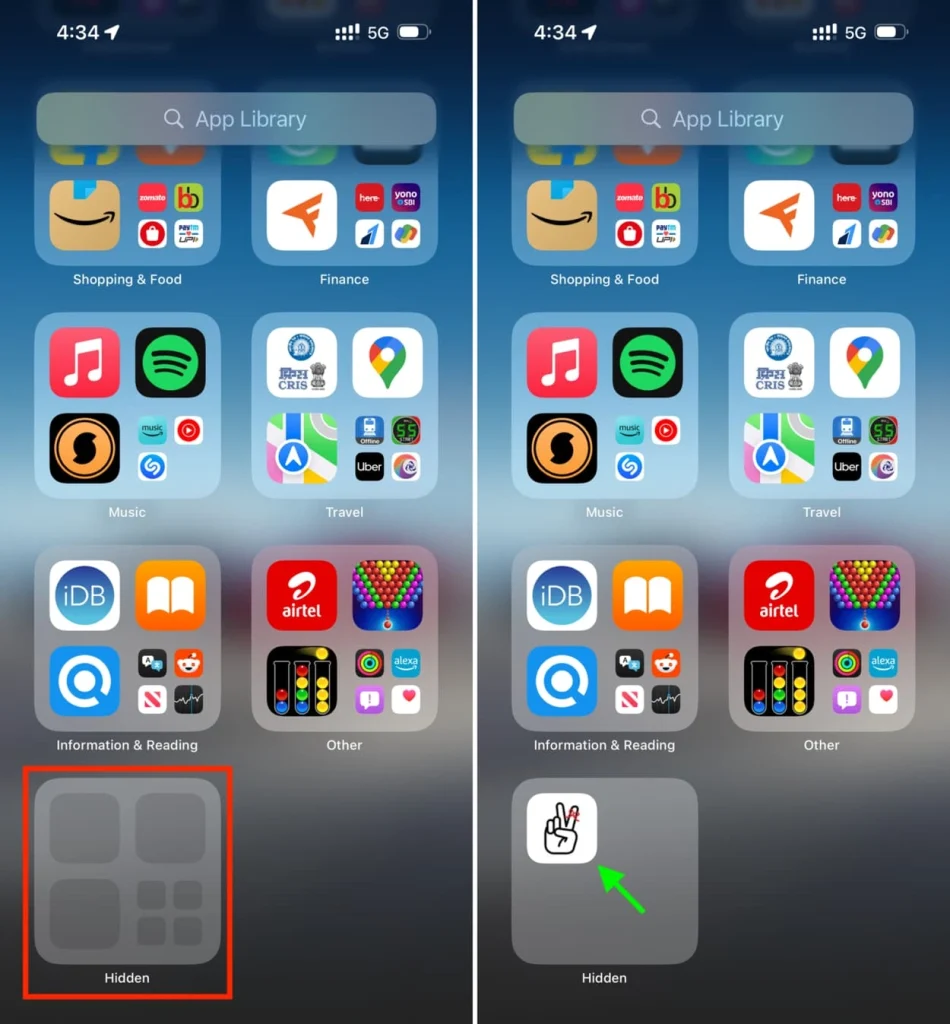
Since iOS 14, Apple has included the App Library, where all installed apps are stored—even if they’re hidden.
Steps:
Swipe all the way left until you reach the App Library.
Use the search bar or browse through the categories.
Tap and hold the app you want to unhide.
Drag it back to your Home Screen.
This is a simple way to restore app visibility without needing to reinstall anything.
Method 3: Check Folders and Nested Pages
Apps may be hidden inside folders—especially if your iPhone has many apps.
Steps:
Open each folder on your Home Screen.
Swipe through pages inside folders.
Look for the app icon manually.
This step is important if the app was moved to a folder and overlooked.
Unhiding Apps Hidden by Screen Time
If your iPhone has Screen Time restrictions enabled, some apps may be hidden completely—even from search and the App Store.
Method 1: Re-enable Apps in Screen Time Settings
Some built-in apps like Safari, Camera, or FaceTime can be hidden using Screen Time controls.
Steps:
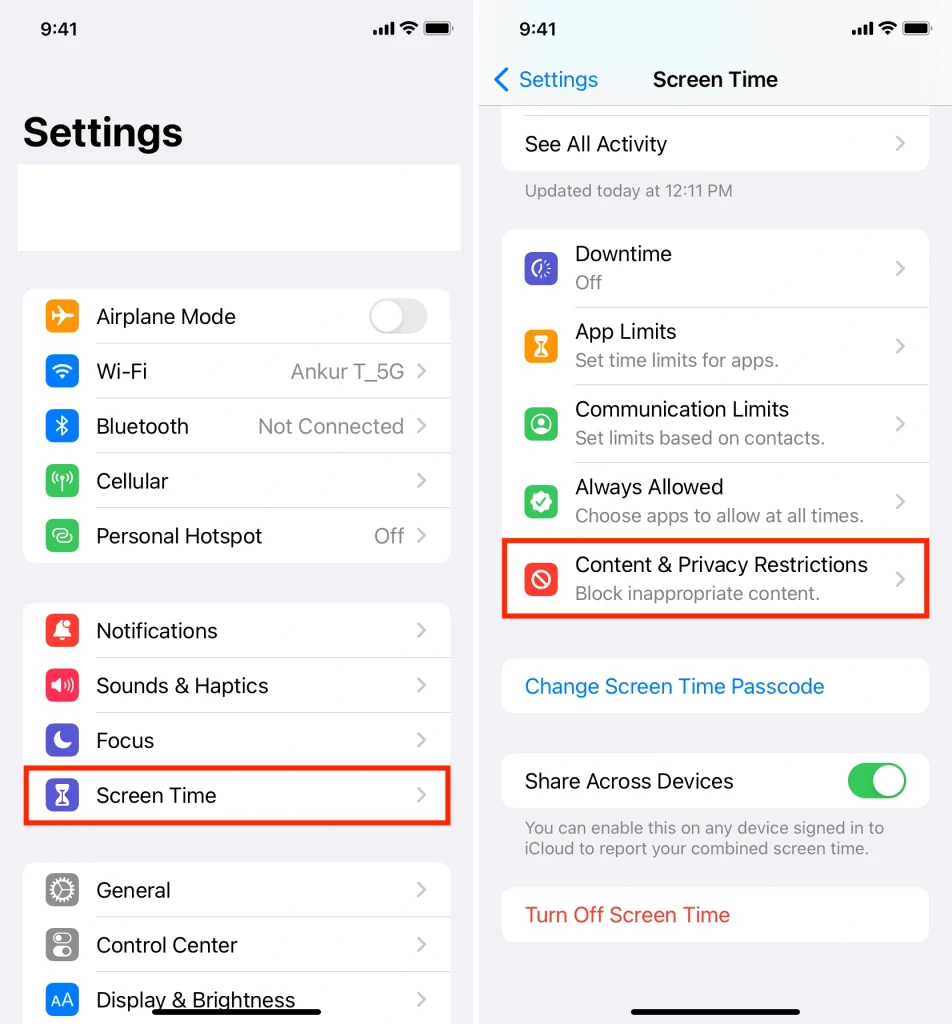
Go to Settings > Screen Time.
Tap Content & Privacy Restrictions.
Enter your Screen Time passcode.
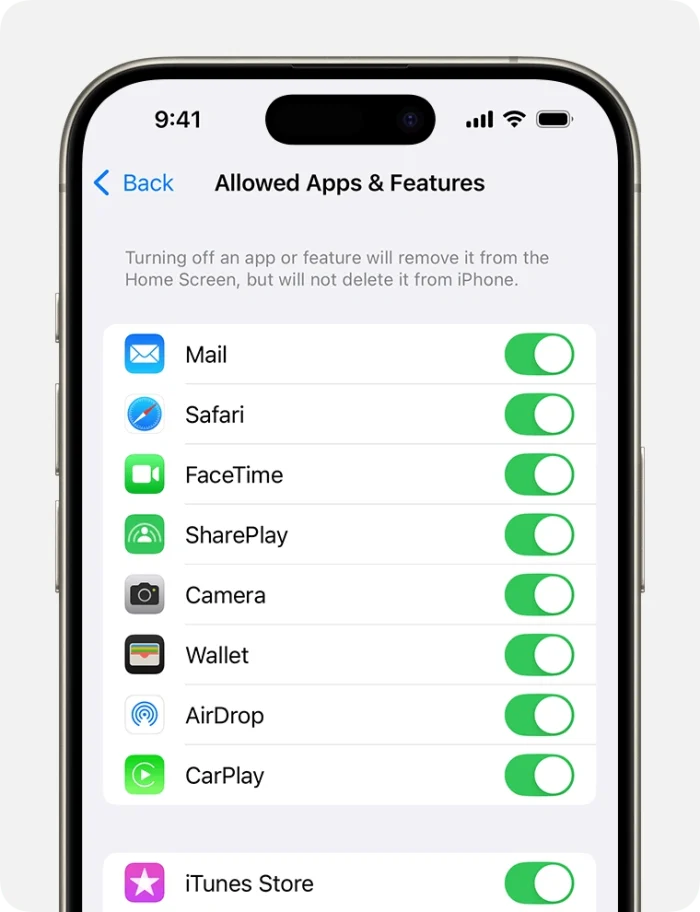
Tap Allowed Apps.
Enable any apps you want to unhide.
If you find that essential system apps are missing, this setting should be your first stop.
What to Do When Apps Are Removed from the Home Screen
Apps may not be hidden but simply removed from the Home Screen, making them harder to find.
Method 1: Restore Apps from the App Store
If the app is still linked to your Apple ID, you can reinstall or re-add it via the App Store.
Steps:
Open the App Store.
Search for the app’s name.
If it shows “Open”, it’s still installed.
Tap and hold it, then choose “Add to Home Screen.”
This is particularly useful for third-party apps that don’t appear in App Library search right away.
Method 2: Reset the Home Screen Layout
If you’ve rearranged your apps and can’t locate one, resetting the layout may help.
Steps:
Open Settings > General.
Tap Transfer or Reset iPhone.
Select Reset > Reset Home Screen Layout.
Confirm the action.
This will restore your icons to the default layout, making all apps visible again, though it removes any custom layout or folders.
Still Can’t Find the App?
If the app still doesn’t show up after trying all these methods, it may have been deleted. Open the App Store, search for the app, and reinstall it if needed.
Also, check whether you’ve used third-party tools, Shortcuts, Face ID, or Touch ID to lock or hide apps. These may need to be disabled first for full visibility.
Final Thoughts
Understanding how to unhide apps on iPhone is essential for any user who customizes their Home Screen or manages app access with Screen Time. Whether the app is hidden in a folder, removed from the Home Screen, or restricted through settings, the methods covered here can help restore visibility quickly.
Start with the simplest options like Spotlight Search and the App Library, and move on to more advanced methods like Screen Time adjustments and layout resets. In just a few steps, you’ll have full access to all your apps again.
Also, learn how to clear app cache to ensure smooth performance on your Apple devices in our guide on how to clear app cache on iPhone.
FAQs
How do I unhide apps on my iPhone?
You can unhide apps on your iPhone by using Spotlight Search, the App Library, or by checking Screen Time restrictions. Swipe down on your Home Screen and search for the app name using Spotlight. If found, you can open it or drag it back to your Home Screen. If the app was restricted, go to Settings > Screen Time > Content & Privacy Restrictions > Allowed Apps and enable it.
How do I put hidden apps back on my Home Screen?
To place a hidden app back on your Home Screen, go to the App Library by swiping left past the last Home Screen page. Locate the app, then tap and hold its icon, and drag it back to your desired Home Screen location. You can also search for the app using Spotlight, then press and hold the app icon to move it.
How to put apps back on Home Screen iPhone?
If an app is missing from the Home Screen but still installed, open the App Library or use Spotlight Search to locate it. Once you find it, press and hold the icon and drag it back to the Home Screen. Alternatively, you can go to Settings > General > Reset > Reset Home Screen Layout to restore all apps to their default positions.
How do I get my iPhone to show all apps?
To show all apps on your iPhone, check the App Library, folders, and Screen Time settings. You can also reset your Home Screen layout by going to Settings > General > Transfer or Reset iPhone > Reset > Reset Home Screen Layout. This will bring back all apps to their original positions and ensure none are hidden.
Jerry is an avid tech enthusiast. He loves to read about new innovations and technologies as well as share his thoughts on what he finds. He has a degree in English from the University of South Florida, but spends most of his time writing about technology rather than reading literature.