Skip to content
Ideas for Technology Logo

Ideas For Technology

Primary Menu
  • Home
  • Hosting
  • Gadgets
  • Applications
  • Categories
    • Games
    • iPhone
    • Mobiles
    • Android
    • News
    • Cameras
    • Hosting
    • Accessories
    • Applications
    • Tips and Tricks
    • WordPress Themes
    • Reviews
  • About Us
    • Contact Us
      • Advertise With Us
  • Home
  • Android
  • How to Transfer Contacts from Android to Android
  • Android
  • Tips and Tricks

How to Transfer Contacts from Android to Android

Jerry 11 months ago

Switching phones can be exciting, especially when upgrading to a new Android device. However, transferring essential data like contacts can feel overwhelming. Fortunately, there are multiple reliable and simple ways how to transfer contacts from Android to Android.

This comprehensive guide outlines six effective methods, whether you prefer cloud syncing, Bluetooth sharing, or using apps. With each option, you’ll learn how to make the switch quickly and securely.

How to Transfer Contacts from Android to Android

Content

  • The Top 6 Methods: How to Transfer Contacts from Android to Android
    • 1. Google Account Sync
    • 2. Bluetooth Transfer
    • 3. Contact Transfer App
    • 4. Samsung Smart Switch
    • 5. VCF File Sharing
    • 6. Android Quick Share
  • Final Thoughts
  • Frequently Asked Questions
    • How do I transfer all Contacts from old Android to new Android?
    • How do I get all Contacts from my old phone to my new phone?
    • How do I transfer everything from my old Android to my new Android?
    • How do I transfer Contacts from Android to Android via Bluetooth?

The Top 6 Methods: How to Transfer Contacts from Android to Android

These methods help users transfer contacts from Android devices effortlessly. Each solution caters to different needs—cloud storage users, offline sharers, tech-savvy individuals, and those who prefer conventional techniques.

1. Google Account Sync

How to Transfer Contacts from Android to Android

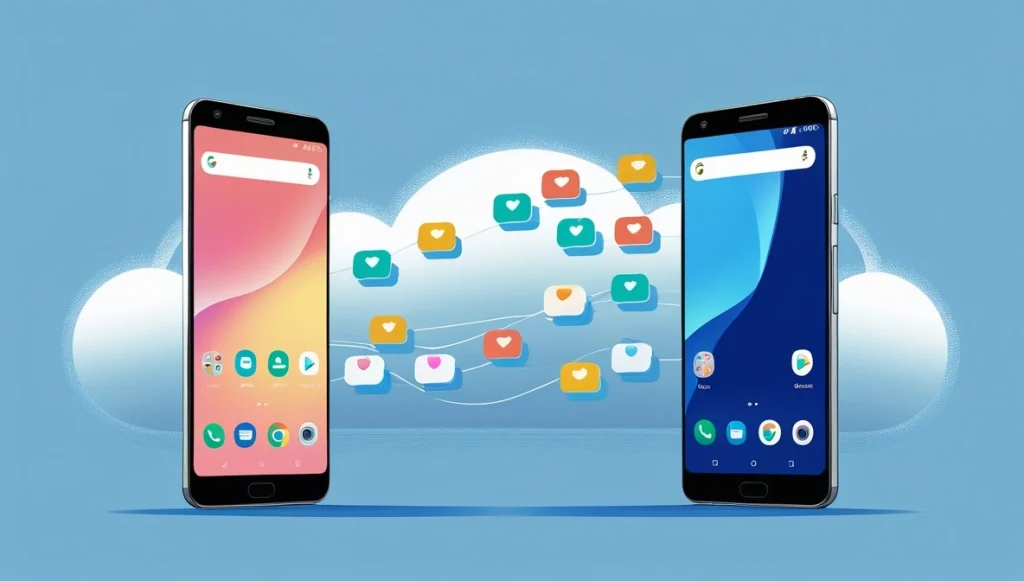
Google Account sync is a built-in solution that keeps your contacts available across all Android devices.

Steps:

  1. Open Settings > Accounts > Google on your current device.
  2. Ensure Contacts sync is turned on.
  3. Sign in to the same Google account on your new device.
  4. Your contacts will sync automatically.

Advantages:

  • Automatic syncing
  • Fast and accurate

Drawbacks:

  • Requires internet access
  • Needs a Google account

2. Bluetooth Transfer

How to Transfer Contacts from Android to Android

Bluetooth is a reliable method when Wi-Fi is unavailable.

Steps:

  1. Enable Bluetooth on both devices.
  2. Open the Contacts app and select the contacts you want to share.
  3. Tap Share > Bluetooth, then choose the receiving device.
  4. Accept the transfer on the new phone.

Advantages:

  • No need for internet or apps
  • Simple and direct

Drawbacks:

  • Slower for large lists

3. Contact Transfer App

How to Transfer Contacts from Android to Android

Apps like Contact Transfer are designed for moving contacts between Android devices.

Steps:

  1. Download Contact Transfer from the Play Store on both phones.
  2. Open the app and follow the pairing steps.
  3. Select contacts and tap Transfer.

Advantages:

  • User-friendly
  • Transfers full contact data including photos

Drawbacks:

  • Some apps may require payment

4. Samsung Smart Switch

How to Transfer Contacts from Android to Android

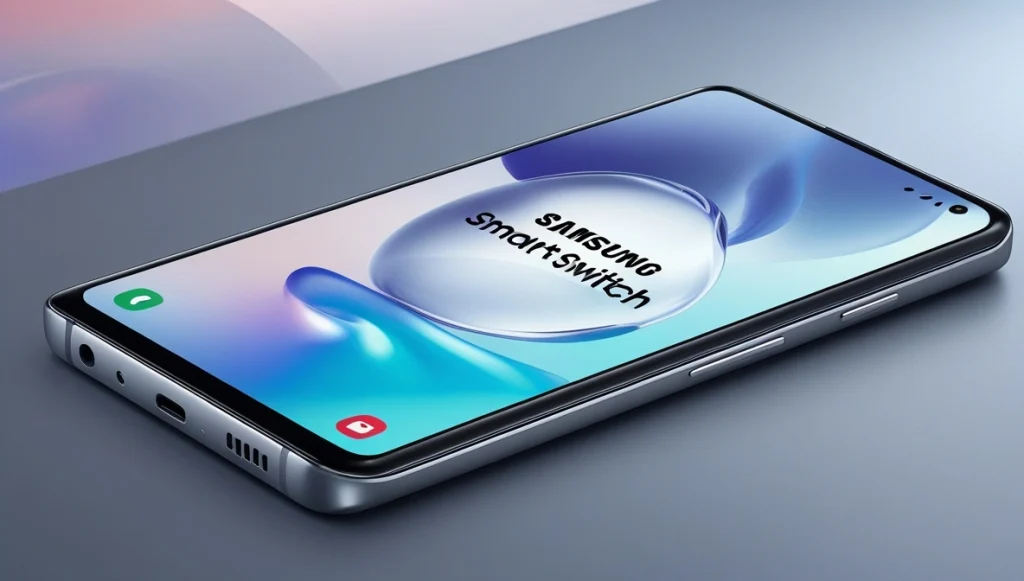
Samsung users can rely on Smart Switch, which is pre-installed on most Samsung phones.

Steps:

  1. Launch Smart Switch on both devices.
  2. Tap Send Data > Wireless on the old phone.
  3. Tap Receive Data on the new phone.
  4. Choose Contacts and begin transferring.

Advantages:

  • Transfers contacts, messages, apps, and more
  • Official and secure tool

Drawbacks:

  • Limited to Samsung devices

5. VCF File Sharing

How to Transfer Contacts from Android to Android

VCF (Virtual Contact File) lets user’s export and import contacts manually.

Steps:

  1. Open the Contacts app on the old phone.
  2. Select Export to .vcf file and save the file.
  3. Transfer the file to your new phone using email or storage.
  4. Import the file via the Contacts app.

Advantages:

  • Works offline
  • Good for creating backups

Drawbacks:

  • Requires manual handling

6. Android Quick Share

How to Transfer Contacts from Android to Android

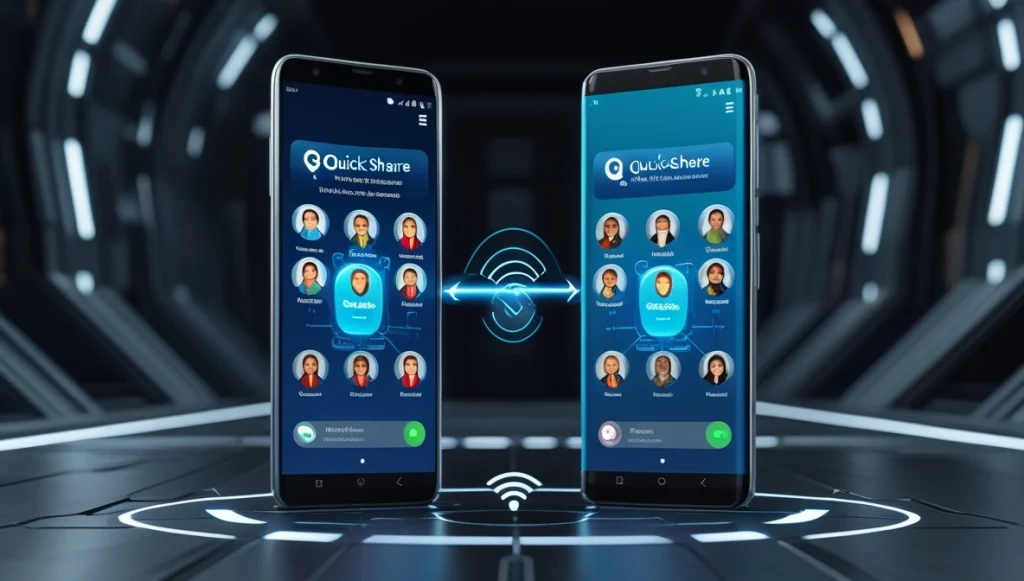
Quick Share is a modern peer-to-peer option for contact sharing.

Steps:

  1. Select contacts on your old Android phone.
  2. Tap Share > Quick Share.
  3. Pick the new device to send the contacts.

Advantages:

  • Fast and wireless
  • Built into many Android phones

Drawbacks:

  • Compatibility issues with older devices

Bonus: Use Droid Transfer on PC

How to Transfer Contacts from Android to Android

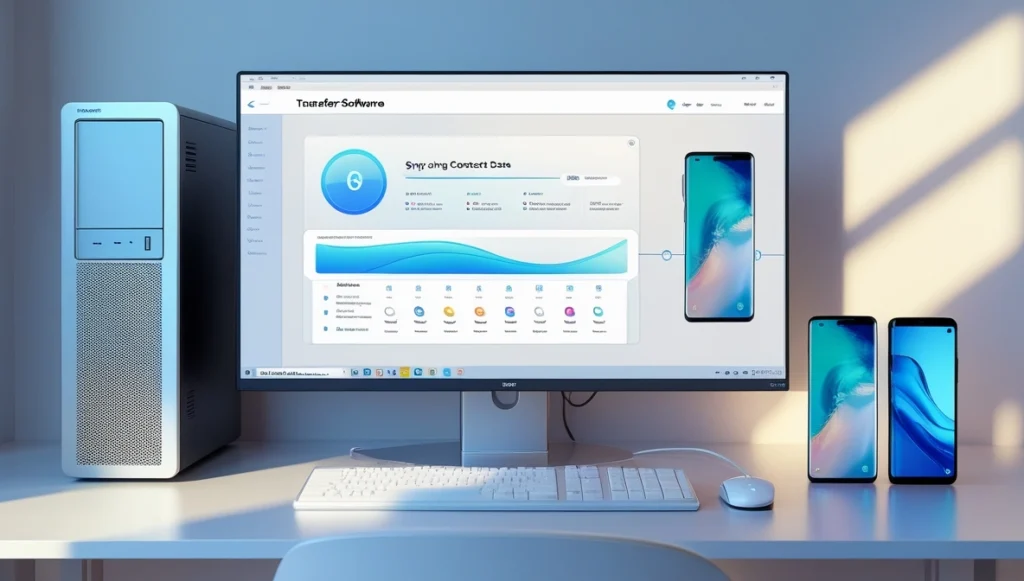
Droid Transfer is a Windows-based tool that copies Android contacts to a computer before syncing them to another device.

Steps:

  1. Install Droid Transfer on your PC.
  2. Connect your old Android device via USB or Wi-Fi.
  3. Export your contacts.
  4. Connect the new device and import contacts.

Advantages:

  • Suitable for bulk contact transfers
  • Includes editing and backup features

Drawbacks:

  • Requires access to a computer

Final Thoughts

Understanding how to transfer contacts from Android to Android ensures a smooth experience when switching devices. Here’s a quick recap:

  • Google Sync: Ideal for users already using Google
  • Bluetooth: Great for quick, offline transfers
  • Contact Transfer App: Simple and full-featured
  • Smart Switch: Best for Samsung owners
  • VCF File: Suitable for manual backups
  • Quick Share: Efficient for modern phones
  • Droid Transfer: Useful for PC-based backups

Each method is effective depending on your setup. Try one today and enjoy your new Android phone without losing your valuable contacts.

For more information, you can visit our website

Frequently Asked Questions

How do I transfer all Contacts from old Android to new Android?

The easiest way is by syncing your Google account. Just ensure Contacts sync is enabled in your old device’s settings. Sign into the same Google account on the new device and your contacts will appear automatically.

How do I get all Contacts from my old phone to my new phone?

You can use Google sync, Bluetooth, a .vcf file, or transfer apps like Contact Transfer. Each method offers a secure and efficient way to move your contact list.

How do I transfer everything from my old Android to my new Android?

Use Samsung Smart Switch or a full device backup tool like Google Backup. These options allow you to move not just contacts but also apps, messages, photos, and more.

How do I transfer Contacts from Android to Android via Bluetooth?

Enable Bluetooth on both devices. Select the desired contacts in the Contacts app, tap Share > Bluetooth, and choose the receiving device. Accept the transfer on the new phone

Jerry Moore
Jerry

Jerry is an avid tech enthusiast. He loves to read about new innovations and technologies as well as share his thoughts on what he finds. He has a degree in English from the University of South Florida, but spends most of his time writing about technology rather than reading literature.

Related Posts:

  • How to Print Text Messages from Android
    How to Print Text Messages from Android
  • Best Android Apps for Android Enthusiasts
    Best Android Apps for Android Enthusiasts
  • Android Auto Not Working
    Android Auto Not Working? Here’s How to Fix It…
  • Android Phone
    Comprehensive Guide to Optimizing Your Android…
  • Android System Intelligence
    What is Android System Intelligence?
  • Android Utility Tool Apps
    The Ultimate Guide to Android Utility Tool Apps:…
  • Android Phone Cases
    The Ultimate Guide to Android Phone Cases: Best,…
  • Best Click Beat App
    What is the Best Click Beat App for Android?
  • How to Extend Your Phone’s Battery Life
    How to Extend Your Phone’s Battery Life
  • How to Unhide Apps on iPhone
    How to Unhide Apps on iPhone
  • How to Download Facebook Videos On iOS
    How to Download Facebook Videos On iOS
  • Mac SSDs Data Recovery
    How to Repair Mac SSDs for Effective Data Recovery

Post navigation

Previous Do AirTags Work with Android? Compatibility & Alternatives
Next How to Print Text Messages from Android

Recent Posts

  • Digital asset management consultant ensuring fund NAV calculations align with new compliance frameworksBlockchain-Based NAV Calculations — Real-Time Valuation for a Real-Time Market
  • Explora el Park Güell La Ciudad Jardín que se Convirtió en ArteExplora el Park Güell: La Ciudad Jardín que se Convirtió en Arte
  • Paseo por Les Rambles La Arteria Vibrante que Conecta la Ciudad con el MarPaseo por Les Rambles: La Arteria Vibrante que Conecta la Ciudad con el Mar
  • How to Pair Skullcandy HeadphonesHow to Pair Skullcandy Headphones: Step-by-Step Guide for All Devices
  • History of the First Portable Hair DryerHistory of the First Portable Hair Dryer: A Look at Beauty’s Technological Evolution

Categories

  • Accessories
  • Android
  • Applications
  • Artificial Intelligence
  • Cameras
  • Computer
  • Crypto
  • Electronics
  • Gadgets
  • Games
  • Graphic Design
  • Hosting
  • How to
  • iPhone
  • Laptop
  • Mobiles
  • News
  • Reviews
  • SEO
  • Server
  • Smart Appliances
  • Social Media
  • Softwares
  • Tips and Tricks
  • Trading
  • Web Designing
  • Wordpress Themes
Ideas For Technology

Top Posts

  • Android Phone CasesThe Ultimate Guide to Android Phone Cases: Best, Cheap, Rugged, and Custom Options for Every Style
  • Best Click Beat AppWhat is the Best Click Beat App for Android?
  • Samsung Galaxy Tab CE0168 ReviewSamsung Galaxy Tab CE0168 Review: A Comprehensive Insight into Samsung’s Android Tablets
  • Fix Game Resolution on AndroidHow Can You Fix Game Resolution on Android?
  • 5 Advantages of the Personalized Study Schedule in Online Course5 Advantages of the Personalized Study Schedule in Online Course
  • CCPA
  • DMCA
  • Disclaimer
  • Privacy Policy
  • Cookies Policy
  • Terms & Conditions
  • Sitemap
Copyright © 2025 All rights reserved. | Magnitude by AF themes.