If you’re wondering how to clear app cache on iPhone, you’re not alone. Many iPhone users experience performance issues or receive storage warnings due to cached data stored by apps. While iOS doesn’t provide a universal “clear cache” button like Android, there are several effective ways to manually remove temporary files. These methods can help free up space, resolve app glitches, and improve overall performance.
This guide walks you through various techniques for clearing app cache on iPhone, helping you maintain a smooth and efficient device experience.
Content
What Is App Cache?
App cache refers to temporary data stored by applications to enhance speed and performance. These files might include images, scripts, session data, or preferences. While cache helps apps run faster, it also takes up space and can cause issues when outdated or corrupted.
Apps like Safari, Instagram, Facebook, and TikTok accumulate cache over time. Since iOS manages background storage processes, most users don’t notice until performance declines or storage notifications appear.
Why Clear App Cache?
Clearing app cache offers several benefits:
Boost performance by freeing up system memory
Fix app glitches by removing corrupted temporary data
Free storage space occupied by unnecessary files
Protect privacy by removing stored login sessions and browsing history
Preserve battery life by reducing background processes
By regularly clearing cache, you can prevent many common performance and storage problems.
How to Clear App Cache on iPhone: Step-by-Step Methods
Although iOS doesn’t offer a single option to wipe all app caches, you can clear cache from individual apps and browsers using the methods below.
Offload vs. Delete: What’s the Difference?
Offloading an app removes the app itself but retains its user data.
Deleting an app removes both the app and its data, including cached files.
Choose offloading when you plan to reinstall the app later and want to keep your settings. Opt for deletion if you want to reset the app completely.
How to Clear Cache for Individual Apps
Method 1: Offload the App (Keep User Data)
Open Settings > General > iPhone Storage
Select the app you wish to offload
Tap Offload App, then confirm
This removes cached files while preserving the app’s core data, allowing for a cleaner reinstall later.
Method 2: Delete and Reinstall the App (Remove All Data)
Go to Settings > General > iPhone Storage
Choose the app you want to delete
Tap Delete App
Download it again from the App Store
This is ideal for apps experiencing crashes, lag, or other issues caused by accumulated data.
How to Clear Safari Cache and Website Data
Safari stores cached content such as cookies, history, and other browsing data. To clear it:
Open Settings > Safari
Tap Clear History and Website Data
Confirm the action
This can resolve slow webpage loading and free up a significant amount of space.
How to Clear Cache in Chrome and Firefox
If you’re using a third-party browser:
In Chrome:
Open Chrome
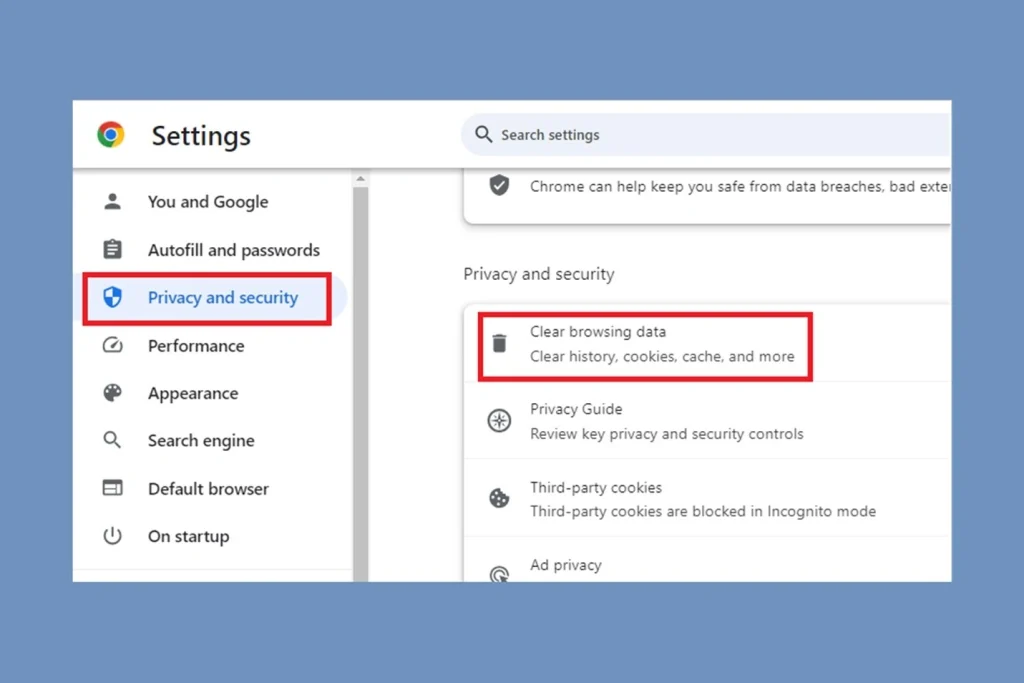
Tap Settings > Privacy > Clear Browsing Data
Check Cached images and files
Tap Clear Browsing Data
In Firefox:
Open Firefox
Tap the menu (three lines)
Go to Settings > Data Management
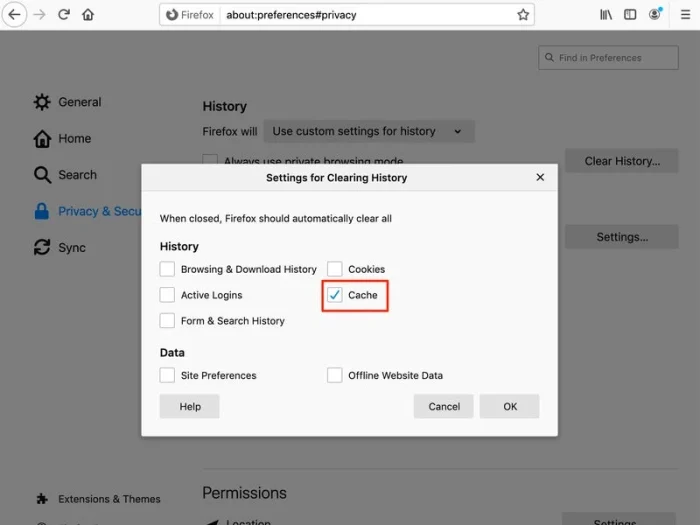
Toggle on Cache and tap Clear Private Data
These steps help refresh your browsing experience by removing stored content.
Smart Storage Management on iPhone
Apple includes smart features that help manage space automatically.
Enable Auto-Offload:
Go to Settings > App Store
Toggle on Offload Unused Apps
iOS will then remove apps you rarely use, while retaining their documents and data for future reinstallation.
Monitor Storage:
Navigate to Settings > General > iPhone Storage
Review the storage usage chart and list of apps
Identify large apps and choose whether to offload or delete them
This approach keeps your device optimized without manual intervention.
Tips to Prevent Cache Overload
Restart your iPhone weekly to clear temporary system data
Use iCloud or Google Drive to offload media files
Clear Safari data monthly for smooth web performance
Limit installation of heavy apps that store large cache (e.g., games, video editors)
Use Lite versions of apps where possible to reduce storage impact
Being proactive can help you avoid sudden storage shortages or app crashes.
Final Thoughts
Understanding how to clear app cache on iPhone is crucial for anyone looking to maintain optimal performance, storage efficiency, and overall usability. While iOS doesn’t have an all-in-one cache clearing tool, the manual methods shared here are practical, effective, and easy to implement.
By offloading apps, deleting unused ones, and regularly managing browser cache, you can keep your iPhone running like new. Regular maintenance goes a long way toward preventing storage overload and improving your device’s responsiveness. For even more ways to enhance your iPhone experience, check out how the Duo app enhances communication on iPhone with iOS 18 features.
FAQs
How do I view app cache on iPhone?
Apple doesn’t let users directly view app cache like on Android. However, you can see how much space each app is using by going to Settings > General > iPhone Storage. Apps using large amounts of data may have significant cache buildup
How to clear app data without deleting apps in iPhone?
You can offload the app via Settings > General > iPhone Storage, which clears most cached files while keeping app data and settings intact. For Safari and some third-party apps, use in-app settings to clear specific data without uninstalling.
How do I clear the cache on apps?
The easiest way is to offload or delete the app through Settings > iPhone Storage. Alternatively, some apps (like Safari, Chrome, or social media apps) offer built-in options to clear cache or browsing data from within their app settings.
How do I clear the cache of an app on my iPhone?
To clear the cache of an app on iPhone, go to Settings > General > iPhone Storage, tap the app, and choose Offload App. This removes cached data but keeps your documents and settings. Reinstall the app to restore full functionality without the cache.
Jerry is an avid tech enthusiast. He loves to read about new innovations and technologies as well as share his thoughts on what he finds. He has a degree in English from the University of South Florida, but spends most of his time writing about technology rather than reading literature.