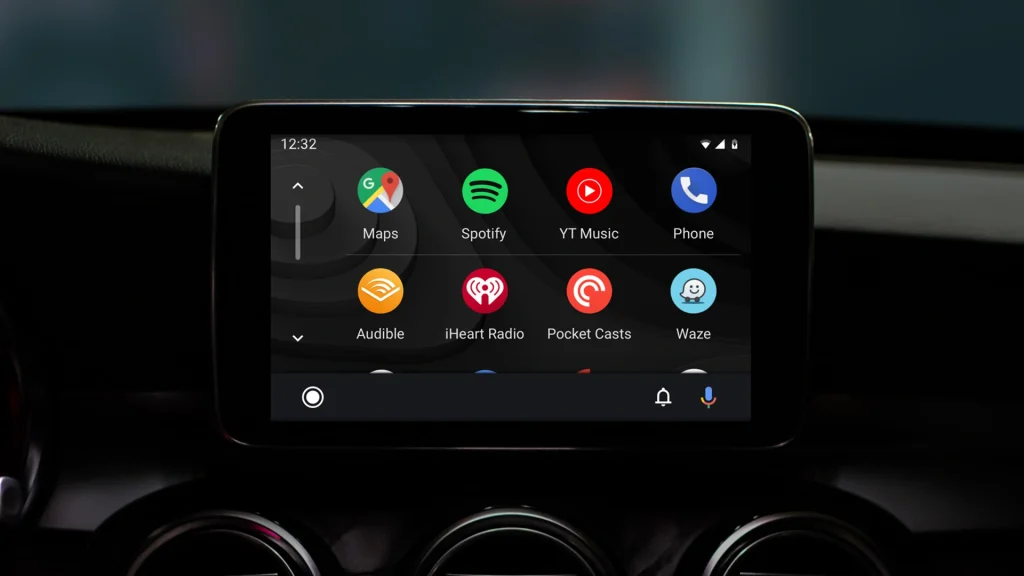
Android Auto has revolutionized the way drivers stay connected on the road. With features like navigation, music streaming, and voice-controlled texting, it’s become an essential tool for many. But when you encounter the issue of android auto not working, it can disrupt your routine and create unnecessary stress.
Fortunately, most problems can be resolved with a few simple steps. In this guide, you’ll discover the most common reasons Android Auto stops functioning and learn how to fix each issue efficiently. Whether you’re using a wired connection or wireless Android Auto, this step-by-step troubleshooting process will help you get back on track quickly.
Content
Common Reasons Android Auto Not Working
If your Android Auto app won’t launch or your phone fails to connect, it could be due to several causes:
Incompatible phone or vehicle
Defective or unsupported USB cable
Outdated app or phone software
Weak Bluetooth or Wi-Fi signal
Disabled app permissions
Incorrect system settings on the phone or infotainment system
Identifying the root cause is essential before trying to fix the issue. Let’s look at how to solve each of these common problems.
1. Check Compatibility First
Before you troubleshoot, make sure your phone and vehicle are compatible with Android Auto:
Your phone should run Android 8.0 or later
Your vehicle must support Android Auto (check the manufacturer’s list)
For wireless Android Auto, your car should support 5GHz Wi-Fi, and your phone should run Android 11 or newer
Compatibility is a key requirement. If your setup doesn’t meet these standards, Android Auto simply won’t work.
2. Restart Your Phone and Vehicle System
Sometimes, the quickest fix is a reboot.
Power off your phone, wait 30 seconds, then turn it back on
Restart your vehicle’s infotainment system, if possible
Rebooting can clear temporary glitches and restore the Android Auto connection.
3. Use a High-Quality USB Cable
For wired connections, the cable plays a crucial role. A poor-quality or damaged cable is a common reason for android auto not working.
Here’s what you can do:
Use the cable that came with your phone
Avoid cables longer than 3 feet or from unreliable brands
Try connecting through another USB port in your car, if available
A reliable USB cable ensures a stable connection between your phone and the infotainment system.
4. Reset Wireless Connections
If you’re using wireless Android Auto, connectivity issues may stem from your phone or car’s wireless settings.
Steps to reset:
Turn Bluetooth and Wi-Fi off, then back on
Forget the vehicle’s connection from your phone and pair it again
Restart both devices before reconnecting
These steps refresh the connection and resolve minor wireless sync issues.
5. Update Android Auto and Related Apps
Running outdated software can cause unexpected issues. Always update Android Auto and other core apps.
To update:
Open the Google Play Store
Search for “Android Auto”
Tap Update if available
You should also update:
Google Maps
Google Play Services
Your device’s operating system
Keeping everything current ensures maximum compatibility and performance.
6. Adjust Android Auto Settings
Misconfigured settings can prevent the Android Auto app from launching correctly.
Check the settings on your phone:
Go to Settings > Connected devices > Android Auto
Remove previously connected vehicles
Enable automatic launch options
Make sure app permissions are enabled for contacts, microphone, and location
Proper configuration improves reliability and ensures the app starts automatically when needed.
7. Clear Cache and Storage
Corrupt data can interfere with Android Auto’s operation. Clearing cache can eliminate these issues.
Here’s how:
Go to Settings > Apps > Android Auto
Tap Storage & cache
Select Clear Cache, then Clear Storage (if necessary)
This will reset app preferences and may fix stubborn errors.
8. Reinstall Android Auto
If Android Auto still isn’t working, a fresh install may help.
Uninstall the app from your phone
Restart the device
Reinstall Android Auto from the Play Store
Reconnect it to your car
This gives you a clean slate and can resolve deep-rooted software problems.
9. Check Your Car’s System Settings
Sometimes the vehicle’s settings can block a proper connection.
Steps to follow:
Open your car’s infotainment system menu
Confirm that Android Auto is enabled
Reset connection preferences if possible
Try a different phone to test if the issue is car-specific
Your car may need a system update, which a dealership can provide if issues persist.
Still Not Fixed? Try These Extra Tips
If you’ve tried everything and android auto is not working, consider the following:
Test a different cable or another phone
Reset your car’s infotainment system to factory settings
Visit your phone manufacturer’s support page
Contact your vehicle dealer for firmware updates
Check Google’s support resources for known issues
These steps are helpful when nothing else seems to work.
Conclusion
Android auto not working can be frustrating, especially when you’re relying on it for safe and seamless driving. The good news is that most issues are minor and can be resolved with straightforward steps—from restarting your devices to updating software or replacing your cable.
By following the methods in this guide, you can restore a reliable Android Auto connection and return to using your favorite features while driving. Whether you’re navigating, making calls, or listening to music, Android Auto should enhance your trip—not interrupt it.
Do you want to enhance your device performance, if yes then click
Frequently Ask Questions
Why is my Android Auto not working anymore?
Android Auto may stop working due to an outdated app, incompatible phone or car, faulty USB cable, disabled permissions, or unstable Bluetooth/Wi-Fi connections. Ensure both your phone and car system are updated and that the app has all necessary permissions.
How do I reset Android Auto in my car?
To reset Android Auto in your car, go to your phone’s Settings > Connected devices > Android Auto, then clear the app’s cache and storage. Also, remove your car from the list of previously connected vehicles, then reconnect. In the car’s infotainment settings, you can remove your phone and pair it again for a fresh start.
How do I get my Android Auto to work?
To get Android Auto working, ensure your phone and car are compatible, updates the Android Auto app, use a certified USB cable (or stable wireless connection), and enable necessary permissions. Restart both your phone and vehicle, and then try connecting again
Why can’t I connect my phone to my car?
If your phone won’t connect to your car, it could be due to an unsupported cable, disabled Bluetooth or Wi-Fi, outdated software, or a compatibility issue. Try using a different cable, updating all apps, restarting both devices, and confirming Android Auto is enabled in your car’s settings.
Jerry is an avid tech enthusiast. He loves to read about new innovations and technologies as well as share his thoughts on what he finds. He has a degree in English from the University of South Florida, but spends most of his time writing about technology rather than reading literature.