How to Print Text Messages from Android has become an important question for users who need to preserve conversations for legal, business, or personal reasons. In a mobile-driven world where SMS remains a key method of communication, having a physical or digital backup of message threads can be essential for documentation, court evidence, or personal records.
Although Android devices don’t offer a built-in print function for SMS, there are several effective ways to export and print your messages. This guide walks you through three practical methods—designed for casual users, professionals, and those with legal requirements—to help you securely print your text messages from any Android device.
Content
Why You Might Need to Print Text Messages
There are several scenarios where printing SMS messages is beneficial:
Legal Evidence: Courts may require hard copies of text message conversations as part of legal documentation.
Business Records: Contracts, approvals, or client communications via SMS may need to be archived.
Personal Backup: Saving important conversations with family or loved ones in physical format can offer long-term peace of mind.
Each case may require different levels of formatting, detail, or metadata—so choosing the right method is important.
How to Print Text Messages from Android
Let’s explore the three most effective ways to print text messages on your Android device.
1. Take Screenshots and Print from Your Device
This is the quickest and most user-friendly way to print short text message threads.
Steps:
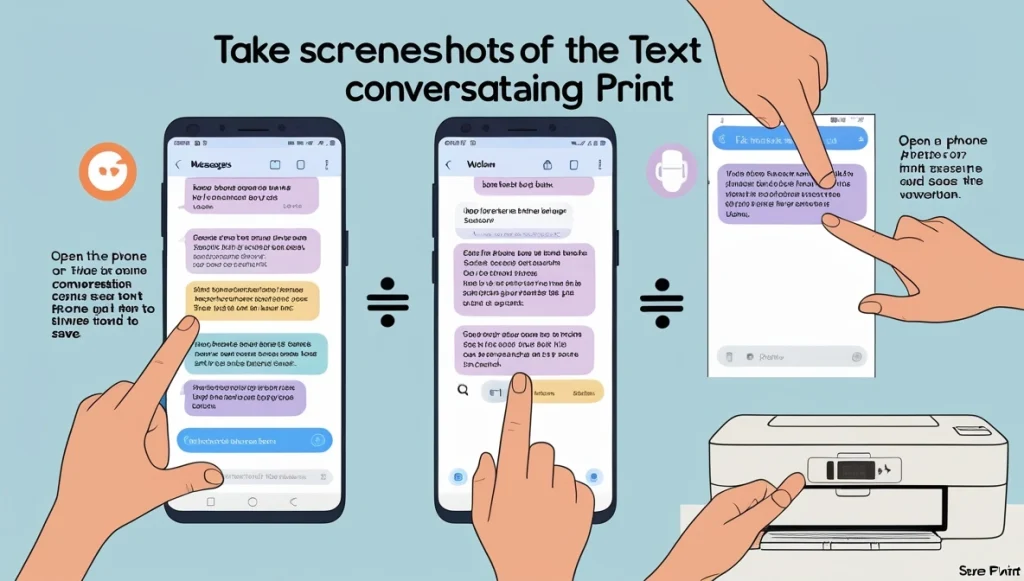
Open the Messages app and navigate to the desired conversation.
Press Power + Volume Down simultaneously to capture the screen.
Repeat for all parts of the conversation you wish to save.
Open your Gallery or Photos app.
Select the screenshots and tap Share > Print.
Connect to a wireless printer or use a mobile printing app like HP Smart or Canon Print.
2. Transfer Screenshots to a Computer for Better Formatting
If you’re dealing with multiple screenshots or want to organize them into a single document, transferring them to a PC or Mac offers more flexibility.
Steps:
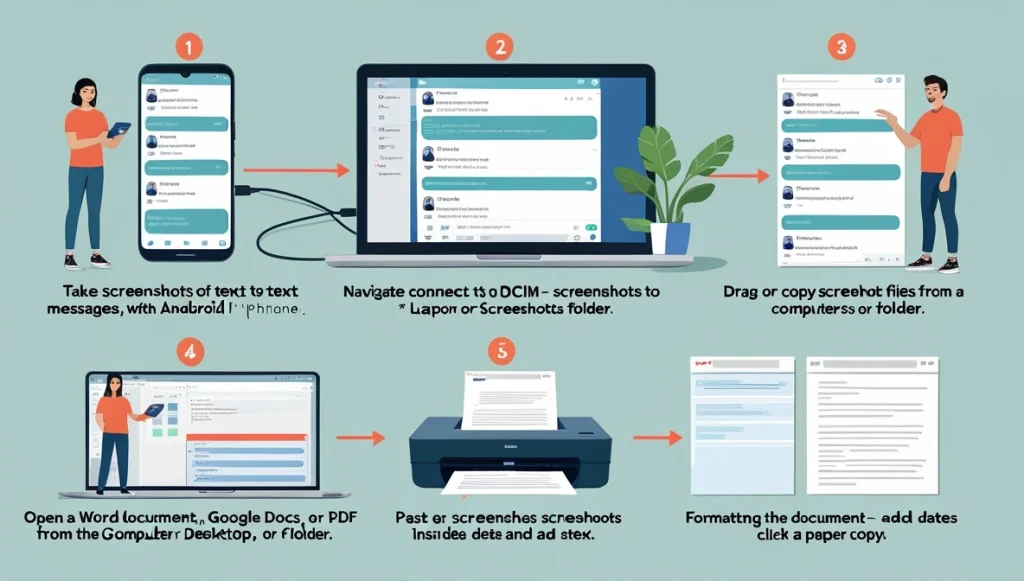
Follow the steps above to take screenshots of the messages.
Connect your Android device to your computer via USB.
Access the DCIM > Screenshots folder.
Copy the images to your computer.
Paste them into a Word document, Google Docs, or a PDF editor.
Format as needed (add notes, titles, or timestamps) and print.
3. Use SMS Backup Apps for Full-Thread Exports
For complete message threads or legal purposes, using an SMS backup app can help export and format messages with timestamps, sender details, and full conversation logs.
Recommended Apps:
SMS Backup & Restore
Droid Transfer
Super Backup & Restore
Steps with SMS Backup & Restore:
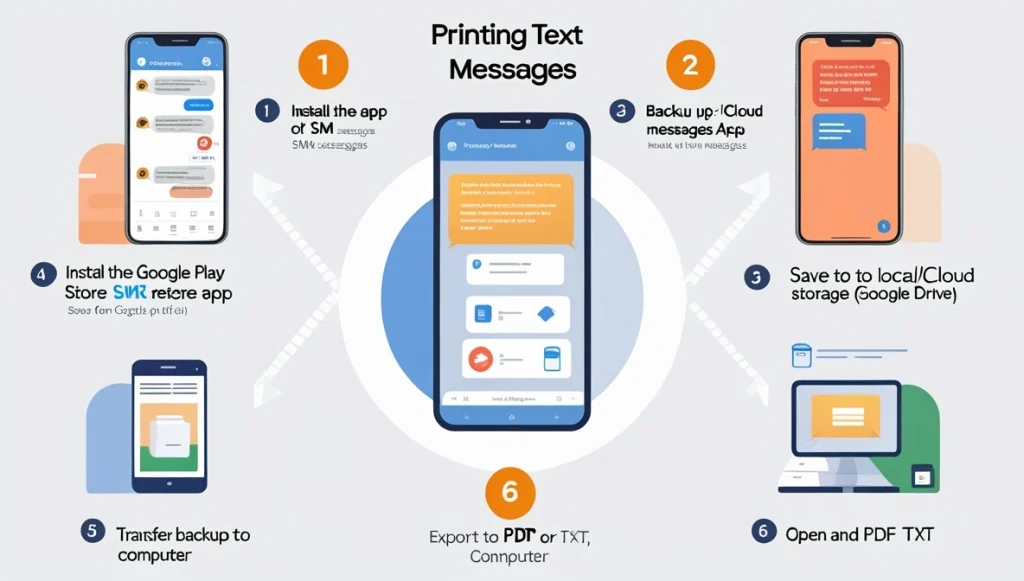
Install the app from the Google Play Store.
Open it and choose to back up your SMS messages.
Save the backup locally or to a cloud service (e.g., Google Drive).
Transfer the backup file to your computer.
Use a supported viewer or converter to export the file to PDF or TXT.
Open and print the document.
These apps typically offer customizable output options, including filters for specific contacts or date ranges.
Comparison of Methods
Method
Best Use
Tools Needed
Screenshots + Print
Quick prints, informal use
Android phone, wireless printer
Transfer to PC
Clean formatting, multiple threads
USB cable, desktop editor
SMS Backup & Restore Apps
Complete logs, legal or official purposes
Backup app, cloud storage, PDF viewer
Security and Privacy Tips
Handling text messages that contain sensitive or personal information requires caution:
Use secure storage for backups (e.g., encrypted cloud folders).
Delete temporary files from public or shared devices.
Avoid untrusted online converters to prevent data exposure.
Double-check file formats before sharing with external parties.
If you are printing messages for legal reasons, ensure that the export includes clear timestamps, sender/receiver details, and no missing messages.
Conclusion
Knowing how to print text messages from Android can be extremely useful in both personal and professional settings. Whether you need to submit printed SMS as legal proof, preserve meaningful messages, or organize communications for business purposes, the right method depends on your specific needs.
Simple screenshot methods may work for casual use, while SMS backup tools offer full control and professional formatting for more complex cases. Regardless of which path you choose, Android provides flexible solutions to help you create reliable, organized, and secure hard copies of your digital conversations.
By following the outlined steps, you can confidently archive and print your SMS messages with clarity and professionalism.
FAQs
How do I print an entire text conversation on Android?
To print an entire text conversation on Android, use an SMS backup app like SMS Backup & Restore or Droid Transfer. These apps allow you to back up the full message thread, including timestamps and contact details, and export it to a PDF or TXT file. Once exported, you can open the file on a computer and print it directly using a connected printer. Alternatively, for shorter conversations, take screenshots of the chat and print them using your phone’s built-in printing options.
How do I export an entire text conversation on Android?
You can export a full text conversation using dedicated SMS management apps like SMS Backup & Restore, which lets you save conversations in XML or CSV formats. For formatted exports (ideal for readability), use apps like Droid Transfer that generate clean PDF documents showing sender names, timestamps, and message content. These files can then be saved locally or transferred to your computer via USB, cloud storage, or email.
What is the best way to print text messages for court?
The best way to print text messages for court is to use an app that offers legally admissible formatting, such as Droid Transfer or SMS Backup+. These tools allow you to export messages with critical metadata like phone numbers, full timestamps, and contact names, which courts typically require. After exporting the conversation as a PDF, review the file for accuracy, then print it from your computer using a reliable printer. Always ensure the output is complete, unaltered, and clearly legible.
How to transfer text messages from an Android to a computer?
To transfer text messages from Android to a computer, follow these steps: 1- Install SMS Backup & Restore or a similar app from the Play Store. 2- Back up your text messages to Google Drive, Dropbox, or your device’s storage. 3- Use a USB cable or access your cloud storage from your computer. 4- Download the backup file and open it using a compatible viewer or convert it to a PDF or TXT format. 5- Save or print the messages as needed.
Jerry is an avid tech enthusiast. He loves to read about new innovations and technologies as well as share his thoughts on what he finds. He has a degree in English from the University of South Florida, but spends most of his time writing about technology rather than reading literature.